
The name is the technical identifier under which the template or a configuration requests the text. The text is what the customer reads in the shop.
Languages are the foundation
Text snippets always exist in the context of a language. Three points belong together here:- Each language is created once in the shop. It is an independent object in the configuration, not in the text snippet service.
- Each subshop has exactly one language. Which text a customer sees depends on which subshop they call: the subshop determines the language, the language determines the text.
- A text snippet has its own version per language. The name is always the same, the text differs.
Text maintenance
The texts are maintained in the Admin Interface under the service Templates und Content -> Textbausteine und Übersetzungen, reachable at:
An import, for example, requires the “Create” and “Edit” permissions.
The permissions always apply to the entire service and not just to individual languages. Anyone who may read texts sees all languages. Anyone who may edit can change all languages. Restricting access to individual languages, for example for external translators, is currently not possible. For a translation job, the export of a single language is therefore the more suitable way.
The overview
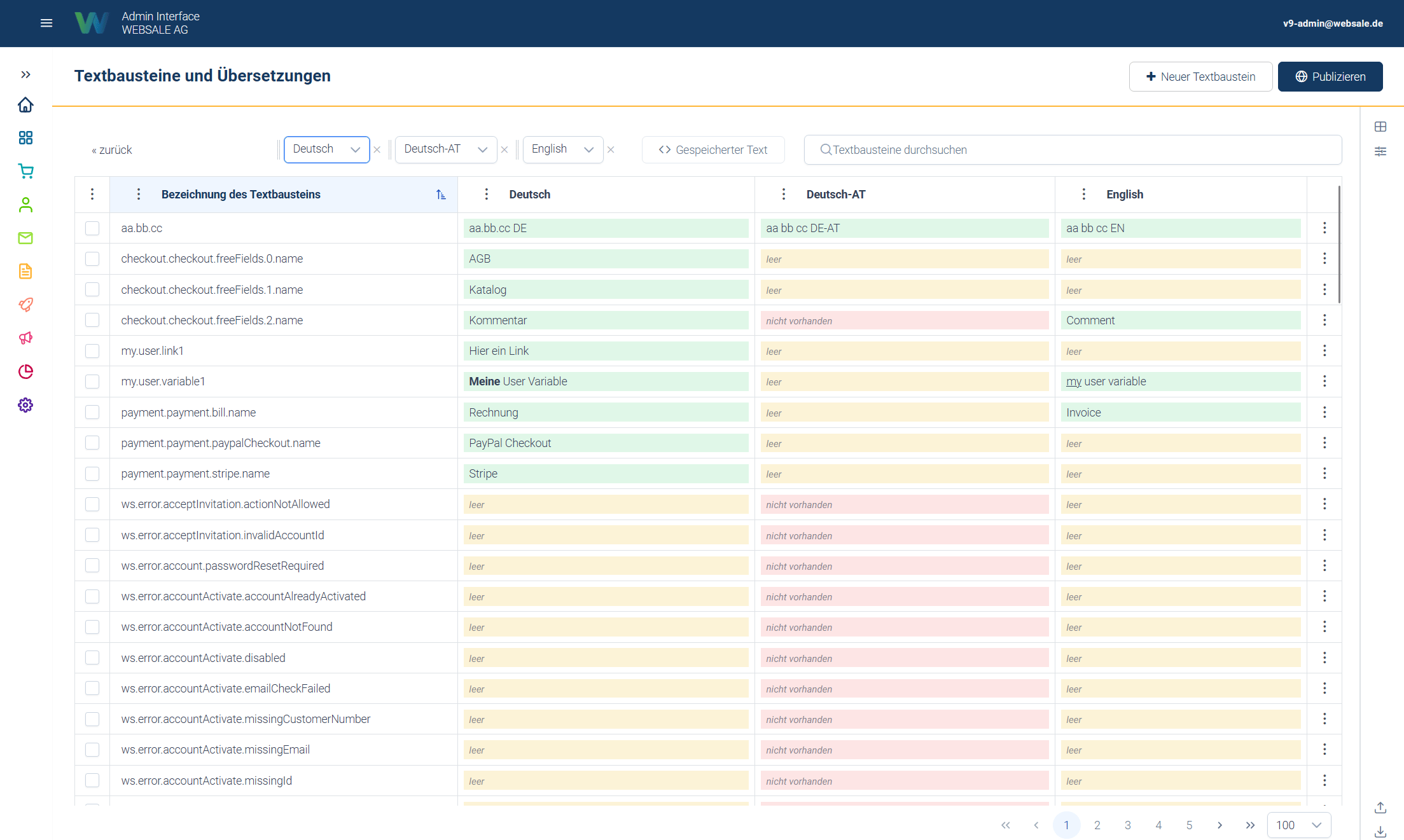
Screenshot as of 25.08.2026
The availability status
The availability status indicates the state of a text snippet in a specific language. There are three variants, color-coded in the cells:- green = maintained: A text is present.
- yellow = empty: An entry exists for this language, but without content.
- red = missing: No entry exists yet for this language.
Searching and filtering
Since many text snippets across multiple languages accumulate over time, the overview can be searched and filtered.- Search: by name and text.
- Availability: exactly the three colors from the table. You can therefore specifically display all snippets that are empty or missing in the focus language and work through the gaps of a language. Several states can be combined. Everything that has one of the selected states is then displayed.
- Type: system text snippets or custom text snippets.
- Usage: whether the snippet is referenced in a template. The reference can be restricted to a single subshop, because the templates of different subshops can use different snippets. How this state comes about is described under Effect in the shop.
- Namespace: a tree view over the dot levels of the names. The tree is not predefined but arises from the names that actually exist in the shop:
shop.checkout.button.labelproduces the levelsshop,shop.checkout, andshop.checkout.button. How useful this filter is therefore depends on how consistently the names are chosen. If you name new snippets according to a fixed scheme, for example with a prefix per shop area, you can later filter out a specific area.
Editing texts
You change a text either directly in the overview in the cell of the respective language or in the detail view of the text snippet, which you open via the context menu with Edit. In both cases, a simple text field is available for each language. The text is saved exactly as you enter it. You therefore enter formatting as HTML markup directly in the text, for example<strong> for bold, <br> for a line break, or <a href="…"> for a link. The shop does not automatically convert paragraphs and line breaks from the text field into HTML.
The former style editor with switching between Use style editor and Edit source code has been removed. If a text needs paragraphs or emphasis, enter the appropriate HTML markup manually.
System and custom text snippets
System text snippets
System text snippets are generated automatically by the shop. They arise from configuration fields that are predefined by the system and not editable. These are usually error texts. Their name begins withws.error.
Such fields exist not only in the actions, but also in other areas such as checkout, user accounts, and external data sources. In the configuration, the field does not carry the error text itself, only the name of the text snippet. The text is maintained exclusively here in the text snippet service.
With shop updates, new system text snippets are added continuously as soon as new configuration areas or extensions are delivered. These are usually delivered with German text, and only in the main language of the respective subshop. You have to enter texts for further languages yourself.After an update, it is therefore worth taking a look at the availability filter: setting the focus language to the language in question and filtering by missing shows exactly the newly added gaps.
- The text is freely changeable. This applies in every language and without restriction. You can therefore fully adapt the phrasing of an error message to your own wording.
- The name is locked. System text snippets can neither be renamed nor deleted, not even per language. The shop references this name at a fixed place. Without it, there would be no text there.
Custom text snippets
When a shop is provisioned, an extensive set of custom, freely changeable text snippets is included. The templates themselves contain no texts; all texts reside in the text snippets. This makes it possible to adapt the entire wording of a shop via this service without having to modify the templates themselves. Beyond that, you can create any number of custom text snippets, for example for individual notes or content that is only needed in this shop. These can be fully created, edited, renamed, and deleted again. Allowed characters in the name: lettersa to z and A to Z, digits 0 to 9, dot ., and underscore _. Spaces, hyphens, umlauts, and all other special characters are not allowed. The dot is more than a separator: it forms the levels of the namespace filter (see Searching and filtering). The prefix ws. is reserved for system text snippets and cannot be assigned.
How a text snippet is embedded in the template is described under Template engine.
Text snippets in configurations
Not only templates but also configurations reference text snippets. Wherever a configuration contains a text that is displayed in the frontend, the name of a text snippet can be used instead of a fixed value. This is not limited to system text snippets. You can also reference custom snippets there. The advantage: the same configuration can be used in several language versions of a shop without duplicating it per language. Details under Using text snippets in configurations. A text snippet referenced by a configuration cannot be deleted as long as the reference exists. Remove the reference in the configuration first.Cleaning up unused snippets
The unused filter shows text snippets that no longer appear in any template. This is more than cosmetics. After a relaunch, a template rebuild, or larger changes to the shop, superfluous snippets regularly remain behind. As long as they are in the list, they reappear with every new language and get translated along with everything else. If you filter for unused snippets and clean them up before adding a new subshop or a new language, you save this effort. Only the texts that the shop actually outputs are then displayed and translated.Before deleting, check whether the state is up to date: usage is determined during template compilation (see Effect in the shop). Immediately after a template change without republishing, the display is not yet up to date.
Creating and assigning languages
This section concerns shop administration. It is not needed for day-to-day editorial work. It explains how the languages that the text snippet service works with come into being.
1. Create the language
Each language is its own configuration node undergeneral.language with a name and an ISO code. Reference and parameters: general - General shop settings.
2. Assign the language to a subshop
A subshop gets exactly one language. It is entered in two places, and both must name the same language:3. Set fallback languages
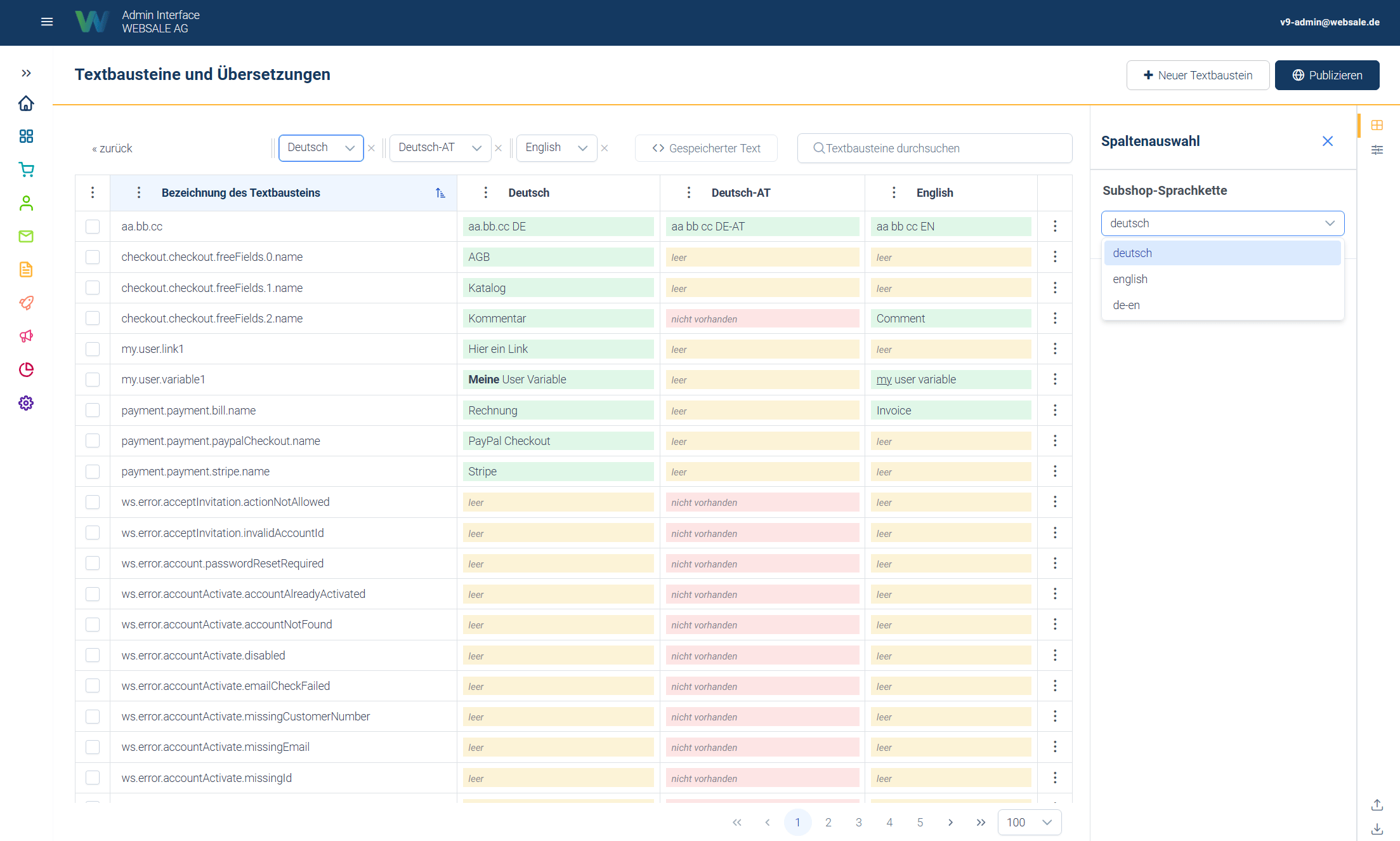
Screenshot as of 25.08.2026
- The subshop gets the language German (AT).
- For the language German (AT), German is entered as the fallback language.
- Result: if a text is missing in German (AT), the shop displays the German text.
de-at-b2b to fall through de-at down to de, both must be entered for de-at-b2b. It is not enough for de-at to reference de itself.
The effect for editors: it is not necessary to maintain every text in all language variants. It is enough to fully maintain the base language. More specific variants automatically take over its contents as long as they contain no text of their own. Only when a variant needs a deviating text does it have to be entered there deliberately. It then overrides the inherited version only for this language.
Effect in the shop
Two points are central for understanding, because they easily lead to confusion:1
The text snippet must be embedded in the template
A text snippet is only displayed if it is embedded in the template at the appropriate place. Creating or changing a text snippet alone is therefore not enough. The respective shop page must also actually reference this text snippet at the corresponding place. If you change an already embedded text snippet, the change takes effect immediately. A completely new text snippet only appears in the frontend after it has additionally been inserted into the respective template.
2
Changes only become visible after publishing
Until publication, changes remain in the editing state, so customers cannot see them yet. During publishing, the templates are recompiled with the most recently changed texts. This is the same process that also recalculates the usage state.
Import and export
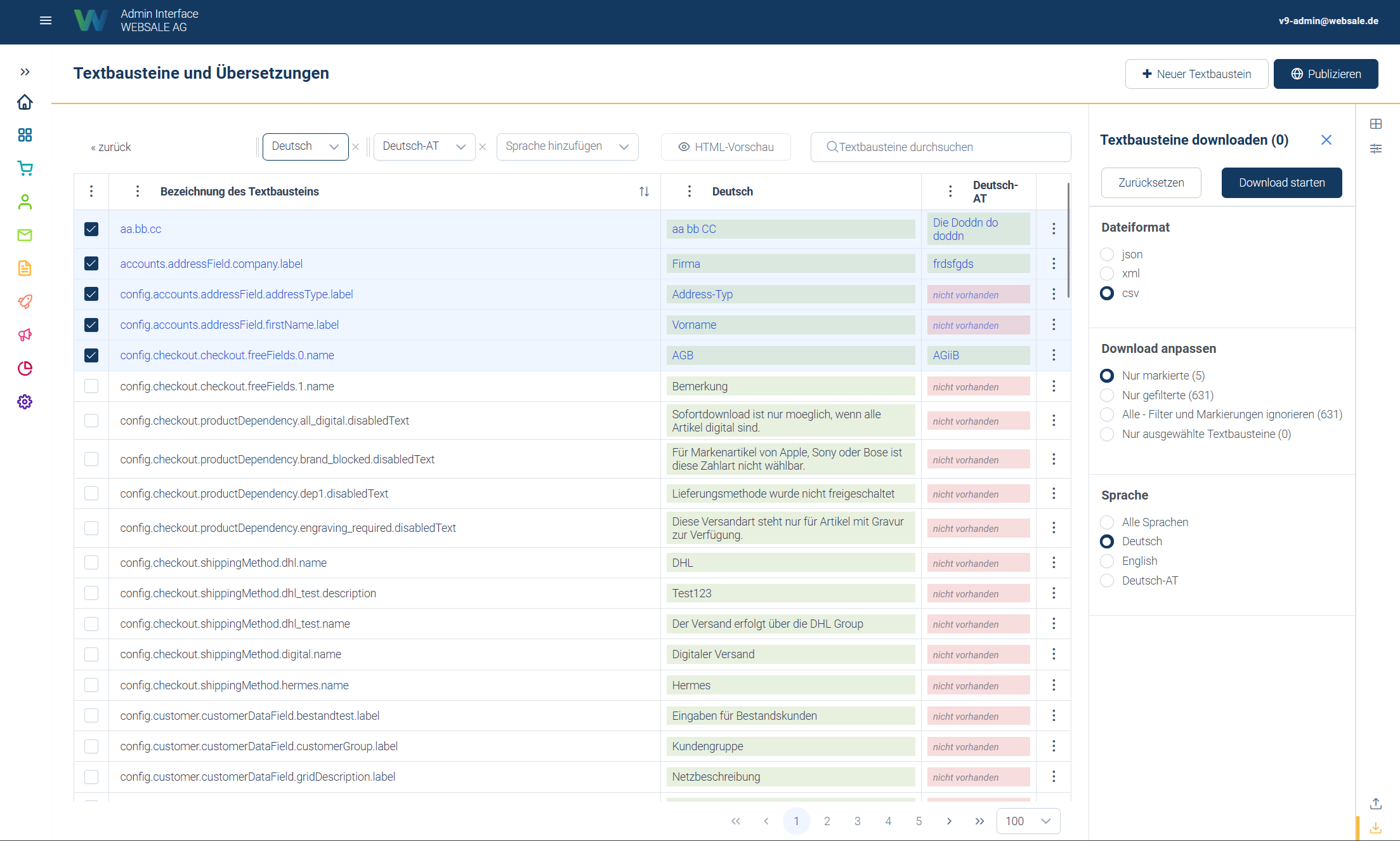
Screenshot as of 25.08.2026
ws. prefix remains reserved for the system.
Before larger or destructive actions, an export is recommended as a backup, because an export can be re-imported unchanged.
Guide
- Template engine: how text snippets are embedded in the template.
- translate: how a template outputs the text of a text snippet at runtime, even in a language other than that of the subshop.
- actions - error texts & emails: how the system error texts (
ws.error.*) are structured. - Overview - Configuration: how configurations reference text snippets instead of containing fixed texts.
general- General shop settings: reference forgeneral.language,general.subshop, andgeneral.subshopView.- Configuration deep links: direct links to the configuration nodes.
- API reference text snippets: endpoints, filters, and import/export interface.