> ## Documentation Index
> Fetch the complete documentation index at: https://dokumentation.websale.de/llms.txt
> Use this file to discover all available pages before exploring further.
# Scan & Order
> Scan & Order im Frontend integrieren: QR- und Barcode-Scanner im Suchfeld nutzen, um Produkte direkt aufzurufen oder in den Warenkorb zu legen.
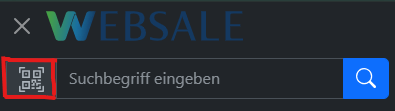
Mithilfe dieser Funktion können Kunden Produkte per QR- oder Barcode aufrufen und in den Warenkorb legen. Ein Scanner-Icon im Suchfeld öffnet die Kamera im Vollbild-Modus. Wird eine URL gescannt, erfolgt einen direkte Weiterleitung. Wird hingegen ein Barcode gescannt, wird das Produkt mit der gescannten ID direkt in den Warenkorb gelegt.
***
## Module
Folgende Module sind relevant für die Integration von Scan & Order:
* [\$wsViews](/frontend/referenz/module/wsviews) - aktuelle URL, Zielseiten, View-URLs
***
## Frontend-Integration
### Abhängigkeiten
Der Scanner basiert auf der Open-Source-Bibliothek [html5-qrcode.](https://github.com/mebjas/html5-qrcode) Die Datei `html5-qrcode.min.js` wird im Verzeichnis `scripts/` abgelegt und erst beim Öffnen des Scanners per Lazy-Load eingebunden.
### QR-Button im Suchfeld
Der Button wird direkt vor dem Suchfeld innerhalb der Komponente `ws-search-box` platziert und öffnet den Scanner. Er erscheint, je nach Endgerät, an folgenden Stellen:
* in der Desktop-Suchleiste des Headers
* im mobilen Offcanvas-Navigationsmenü
Die Einbindung in den Header erfolgt über die Datei `components/layout/header.htm`:
```html theme={"theme":{"light":"github-light","dark":"github-dark"},"languages":{"custom":["/languages/websale.json"]}}
...
```
Der Button muss sowohl im Desktop-Header als auch im mobilen Offcanvas-Menü identisch platziert werden. Mithilfe des Attributs` aria-label=%QRCodeBtnTitle%` werden die Shop-Textbausteine für die Barrierefreiheit benutzt.
### Modal-Fenster
Das Vollbild-Modal wird einmalig im Basis-Layout eingefügt. Der Bereich` #wsQRScanner` ist dafür zuständig, dass die Kameravorschau von `HTML5-QR-Code` angezeigt wird.
Die Einbindung erfolgt über die Datei `layouts/default.htm` :
```text theme={"theme":{"light":"github-light","dark":"github-dark"},"languages":{"custom":["/languages/websale.json"]}}
%%QrScan%%
```
### JavaScript-Konstante
Der Pfad zur Bibliothek wird im `{{ autoescape "js" }}` -Block der Layout-Datei `layouts/default.htm` als JavaScript-Variable gesetzt.
```javascript theme={"theme":{"light":"github-light","dark":"github-dark"},"languages":{"custom":["/languages/websale.json"]}}
{{ autoescape "js" }}
{{ var $cAddToBasketTarget = $wsViews.viewUrl("basket.htm") }}
{{ var $cAddToBasketParams = { wscsrf: $wsActions.csrfToken, quantity: 1 } }}
{{ var $cAddToBasketLink = $wsActions.url("BasketItemAdd", $cAddToBasketTarget, $cAddToBasketParams) }}
{{ /autoescape }}
```
### Scanner-Logik
Der folgende Code-Block ist in die Datei `scripts/wsGlobal.js` einzufügen. Der Ablauf ist wie folgt:
1. Beim ersten Öffnen des Scanners wird `html5-qrcode.min.js` nachgeladen.
2. War die Bibliothek bereits geladen, wird der Scanner direkt über `wsInitQRScan()` gestartet.
3. `html5-qrcode` startet die Kamera und zeigt die Vorschau im `#wsQRScanner` -Bereich an.
4. Nach erfolgreichem Scan leiten URL-Codes direkt zur gescannten URL weiter - Barcodes legen das Produkt mit der gescannten ID direkt in den Warenkorb.
5. Beim Schließen des Fensters wird die Kamera gestoppt.
```javascript theme={"theme":{"light":"github-light","dark":"github-dark"},"languages":{"custom":["/languages/websale.json"]}}
// ---------------------------------------------------------- QR code scanner - start
// const html5QrCode and function wsInitQRScan is in script html5-qrcode.min.js
function wsInitQRScan() {
Html5Qrcode.getCameras().then(devices => {
if (devices && devices.length) {
// use this to start scanning
html5QrCode.start(
{
facingMode: "environment"
},
{
fps: 10,
qrbox: { width: 250, height: 250 }
},
(decodedText, decodedResult) => {
// do something when code is read
html5QrCode.stop().then((ignore) => {
// QR Code scanning is stopped
if (decodedText.startsWith("http")) {
// execute QR code if code is a URL
location.href = decodedText;
} else {
// execute WEBSALE search if Barcode
location.href = wsAddToBasketLink + "&productId=" + decodedText;
}
}).catch((err) => {
// Stop failed, handle it
});
},
(errorMessage) => {
// parse error, ignore it
})
.catch((err) => {
// Start failed, handle it
}
);
}
}).catch(err => {
// access denied
});
}
document.querySelector("#wsQRCodeScanModal").addEventListener("show.bs.modal", function(e) {
var wsQRCodeScanScript = document.querySelector("#wsQRCodeScanScript");
if (!wsQRCodeScanScript) {
// lazyload script for better performance
var script = document.createElement("script");
script.setAttribute("id", "wsQRCodeScanScript");
script.setAttribute("src", wsQRCodeJS);
document.head.appendChild(script);
} else {
// execute function if script is already loaded
wsInitQRScan();
}
});
document.querySelector("#wsQRCodeScanModal").addEventListener("hidden.bs.modal", function(e) {
html5QrCode.stop().then((ignore) => {
// QR Code scanning is stopped
}).catch((err) => {
// Stop failed, handle it
});
});
// ---------------------------------------------------------- QR code scanner - end
```
***
## Weiterführende Links
* [html5-qrcode auf GitHub](https://github.com/mebjas/html5-qrcode) - Dokumentation und Konfigurationsoptionen der Scanner-Bibliothek
## Related topics
- [$wsDirectOrder - Direktbestellung](/frontend/referenz/module/wsdirectorder.md)
- [DirectOrder](/frontend/referenz/aktionen/directorder.md)
- [$wsOrderHistory - Bestellhistorie](/frontend/referenz/module/wsorderhistory.md)
- [API-Referenz Bestellungen](/schnittstellen/admin-interface-api/api-referenz-bestellungen.md)
- [$wsCheckout - Checkout](/frontend/referenz/module/wscheckout.md)
 * im mobilen Offcanvas-Navigationsmenü